
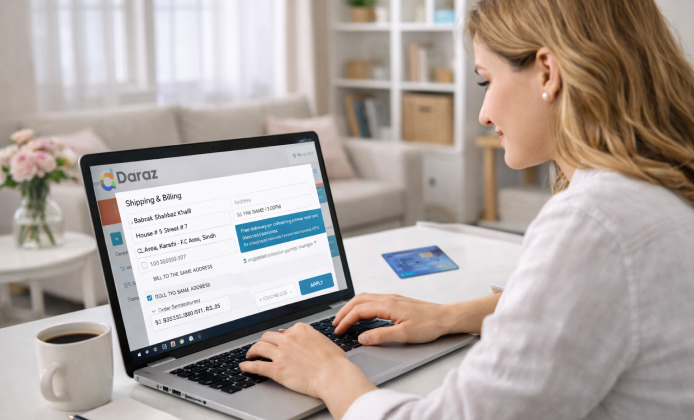
Buying online feels easier when you can see more details at once, compare options side by side, and read reviews without endless scrolling. A larger screen helps you judge product photos, spot size charts, and review seller ratings more confidently.
For many people, the Daraz on laptop experience becomes the most comfortable way to browse during longer shopping sessions. It’s especially handy when you’re checking multiple stores, tracking price changes, or building a cart for a big order.
Why a Laptop Setup Makes Shopping Easier
- More space for comparing products, specifications, and reviews.
- Faster typing for searching, filtering, and entering delivery details.
- Better visibility for flash-sale timers, vouchers, and bundle deals.
- Simpler tracking for orders, returns, and customer support chats.
A practical habit: open two tabs one for your shortlisted items and one for seller pages so you can double-check ratings before you pay.
Ways to Access Daraz on a Laptop
The quickest method is to use a modern browser and sign in to your account. This gives you full access to categories, filters, and order management. If you prefer a more app-like workflow, you can also use an Android emulator to run mobile apps in a desktop window.
Some users choose the Daraz app on laptop approach through an emulator when they want mobile-style navigation and the same layout they use on their phone. That option can feel familiar, but it may require a bit more setup than using the website.
Browser Checklist for a Smooth Session
- Update your browser to the latest version for better security and performance.
- Enable cookies so your cart and login session remain stable.
- Turn on pop-up permissions only if you need payment verification windows.
- Use a password manager to avoid login errors and speed up checkout.
Download Options and What to Expect
When people look for a dedicated desktop workflow, they often search for Daraz download for laptop solutions via emulators rather than a traditional Windows or macOS installer. In practice, the official shopping features are typically accessed through the web, while emulators simply run the Android version in a desktop environment.
If you go the emulator route, pick a well-known emulator, install it from the developer’s official site, and then sign in with a Google account to access app stores. Avoid random third-party installers, since they can include unwanted add-ons.
Step-by-Step: Setting Up an Emulator (Optional)
- Download and install an Android emulator.
- Complete the emulator’s initial setup and sign in.
- Open the app store inside the emulator and search for Daraz.
- Install the app, log in, and adjust notification settings to your preference.
Many shoppers try to install Daraz for free on laptop using this method because it keeps the experience close to the mobile interface. Just remember that performance depends on your laptop’s RAM and CPU, so closing unused programs can help.
Web vs Emulator: Quick Comparison
| Option | Best For | Things to Keep in Mind |
|---|---|---|
| Browser (Website) | Fast browsing, easy comparison, quick checkout | Keep your browser updated and avoid suspicious extensions |
| Emulator (Android App) | Mobile-style interface on a bigger screen | Needs more system resources and careful download sources |
Finding Deals Faster Without Missing Details
- Use filters early: brand, rating, price range, and shipping options.
- Sort by “Top Rated” for safer picks when you’re unsure.
- Open reviews in a new tab so you don’t lose your search results.
- Check seller response time when you’re buying time-sensitive items.
Before you commit, compare the same item across multiple sellers and look at recent review dates. A listing can have a great overall rating but weaker feedback in the last few weeks.
Account Safety on a Larger Screen
Because laptops often stay signed in longer than phones, it’s smart to add a few basic protections:
- Use a strong, unique password and enable two-step verification if available.
- Sign out on shared devices and avoid saving passwords on public computers.
- Be cautious with “too good to be true” offers from unknown sellers.
If You Want an App-Like Setup
Some guides mention Daraz app download for laptop steps, but in reality this usually means installing an emulator first and then adding the app from a trusted store. If your laptop is older, choose a lightweight emulator profile and reduce background startup programs for smoother scrolling and faster page loads.
Troubleshooting Common Issues
- Login loops: clear cookies/cache, then restart the browser.
- Cart not updating: refresh once, then sign out and back in.
- Slow loading: disable heavy extensions and check your internet stability.
- Emulator lag: increase allocated RAM/CPU in emulator settings if your system allows.
If your goal is to download Daraz app for laptop use through an emulator, make sure virtualization is enabled in your BIOS/UEFI settings because many emulators rely on it for good performance. When that setting is off, the app may feel sluggish even on a decent machine.
Helpful Habits for Confident Purchases
- Read the product description fully, especially materials and dimensions.
- Check delivery estimates before applying vouchers.
- Look for clear return conditions and keep order screenshots for reference.
- Compare similar items in separate tabs, then decide with a clean shortlist.
With the right setup, a laptop can turn online shopping into a calmer, more organized process perfect for comparing sellers, tracking discounts, and finishing checkout without rushing.


 Daraz App Install Guide: Set Up Daraz on Mobile and Windows in Minutes
 Shop Smarter on a Bigger Screen: Using Daraz App on PC
 Daraz on Mobile & Tablet: Setup, Features, and Practical Tips
 How to Use Daraz App Smoothly on Laptop
 Top 10 Interesting Facts About Daraz
 The Best Tips for Daraz Users